

Business Needs
Organizations often receive confirmation updates from suppliers across multiple purchase order lines, with varying confirmed quantities and delivery dates. These updates are commonly shared through Excel files. Moreover businesses receive multiple iterations of confirmations for the same PO from the suppliers.
Manually entering this information into the system requires significant effort and increases the risk of data entry errors. Each purchase order line must be reviewed and updated individually, which slows down the overall process.
To simplify this, a process is introduced that allows users to upload supplier confirmation data directly through Excel files. The uploaded Excel file is referred to as the “Supplier Confirmation File”. Once uploaded, the system validates the data and creates supplier confirmations for the corresponding purchase orders.
In addition, the system generates an updated Supplier Confirmation Status to provide visibility into open purchase orders that are still pending delivery or confirmation.
Proposed Solution
To address the challenges of manual Supplier Confirmation updates, a streamlined solution was developed within the SAP S/4HANA Public Cloud system. The solution uses custom applications to automate data upload, validation, and processing, helping maintain accuracy while reducing manual effort.
The solution consists of two key custom apps.
1. Manage Supplier Confirmation Files
This application allows users to upload supplier-provided Excel files (Supplier Confirmation files) directly into the system
During upload, the system validates the file to ensure the data is consistent with existing purchase order information. After successful validation, the system creates Supplier Confirmation lines that represent pending Supplier Confirmations.
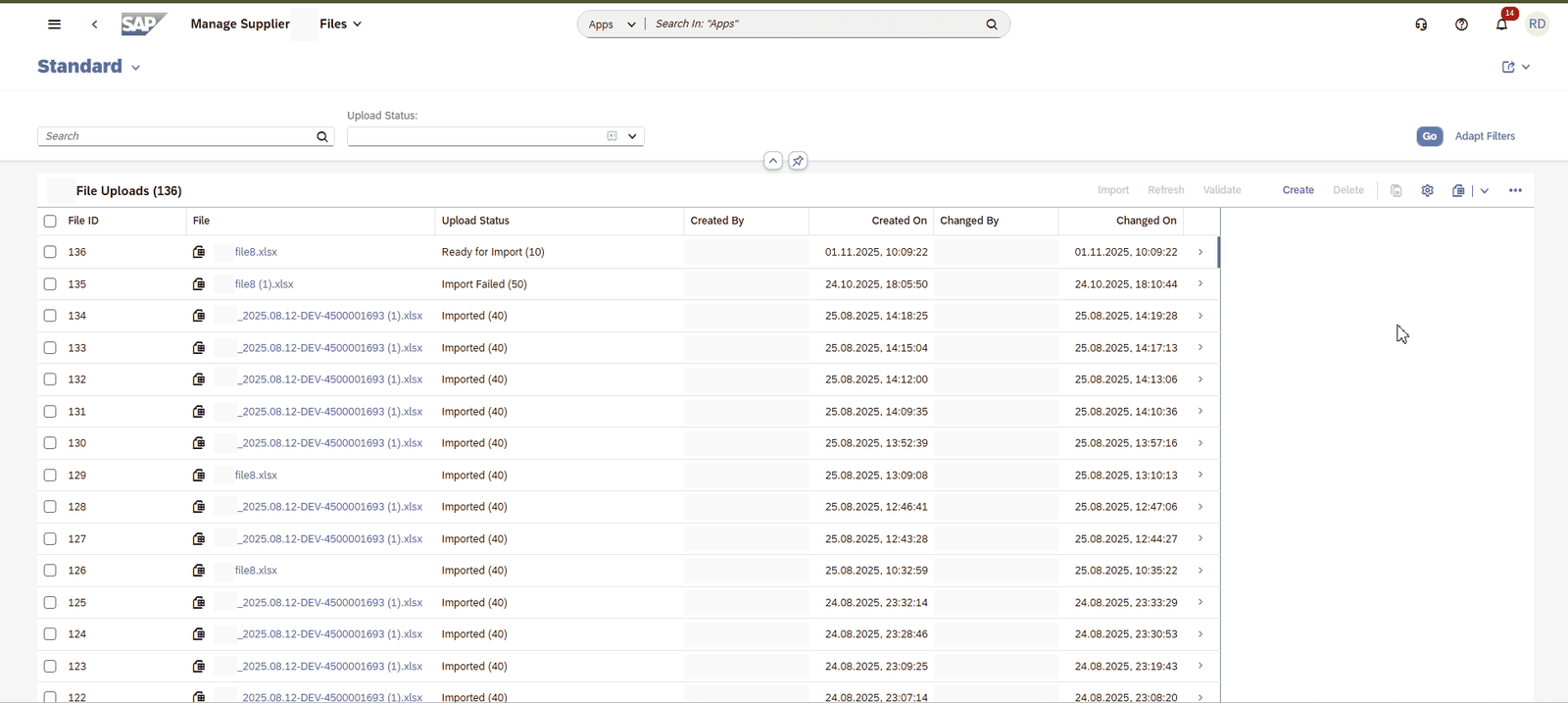
Manage Supplier Supplier Confirmation Files – To upload Excel
2. Manage Supplier Confirmations
This application provides a consolidated view of open purchase order lines, including those with uploaded Supplier Confirmation data.
Users can review, edit, and process Supplier Confirmation updates within this interface. After verification, the system creates Supplier Confirmations for the corresponding purchase orders.
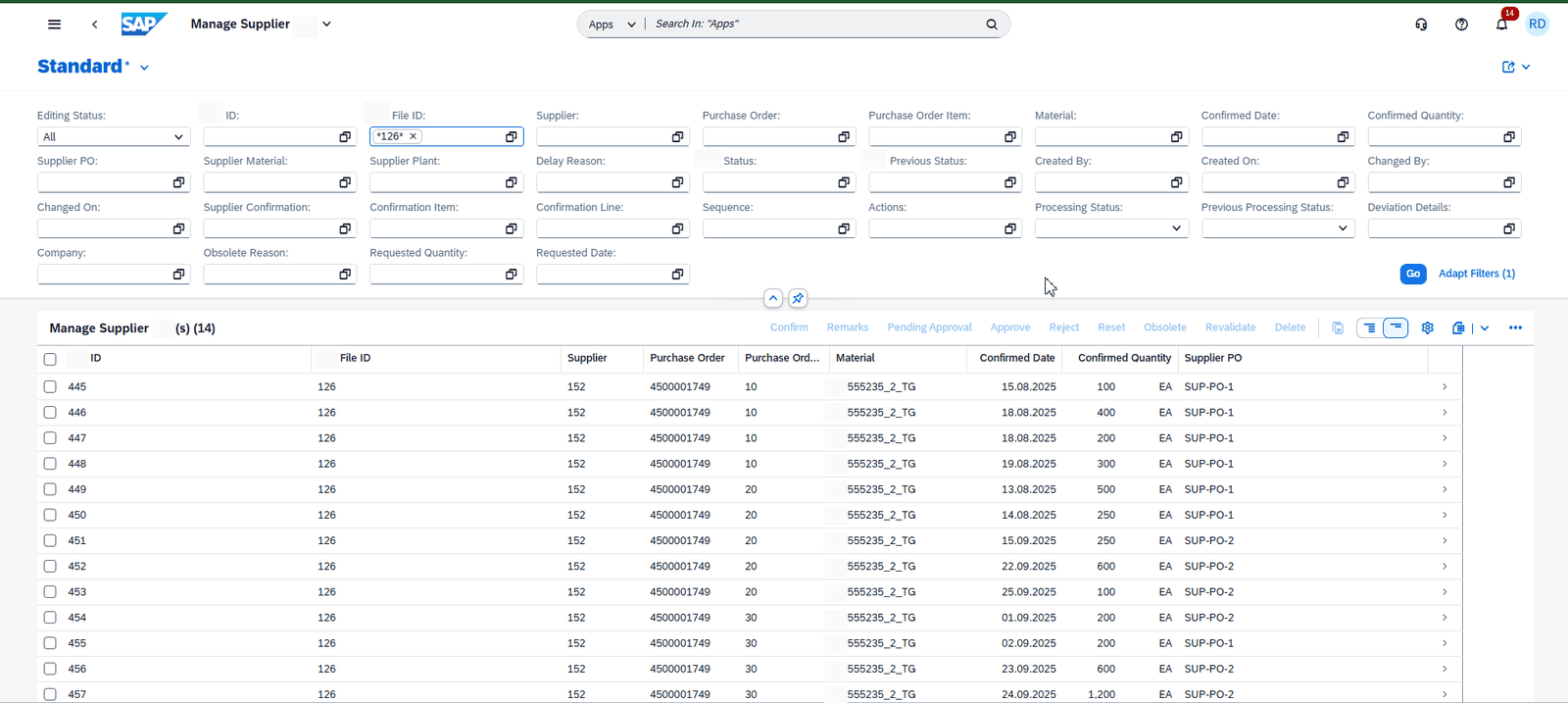
Manage Supplier Confirmation – To verify the data from Excel and trigger Supplier Confirmation.
Technical Solution
Create Supplier confirmation File
Users begin the process by uploading the supplier confirmation Excel file through the Manage Supplier Confirmation Files app.

Excel Template
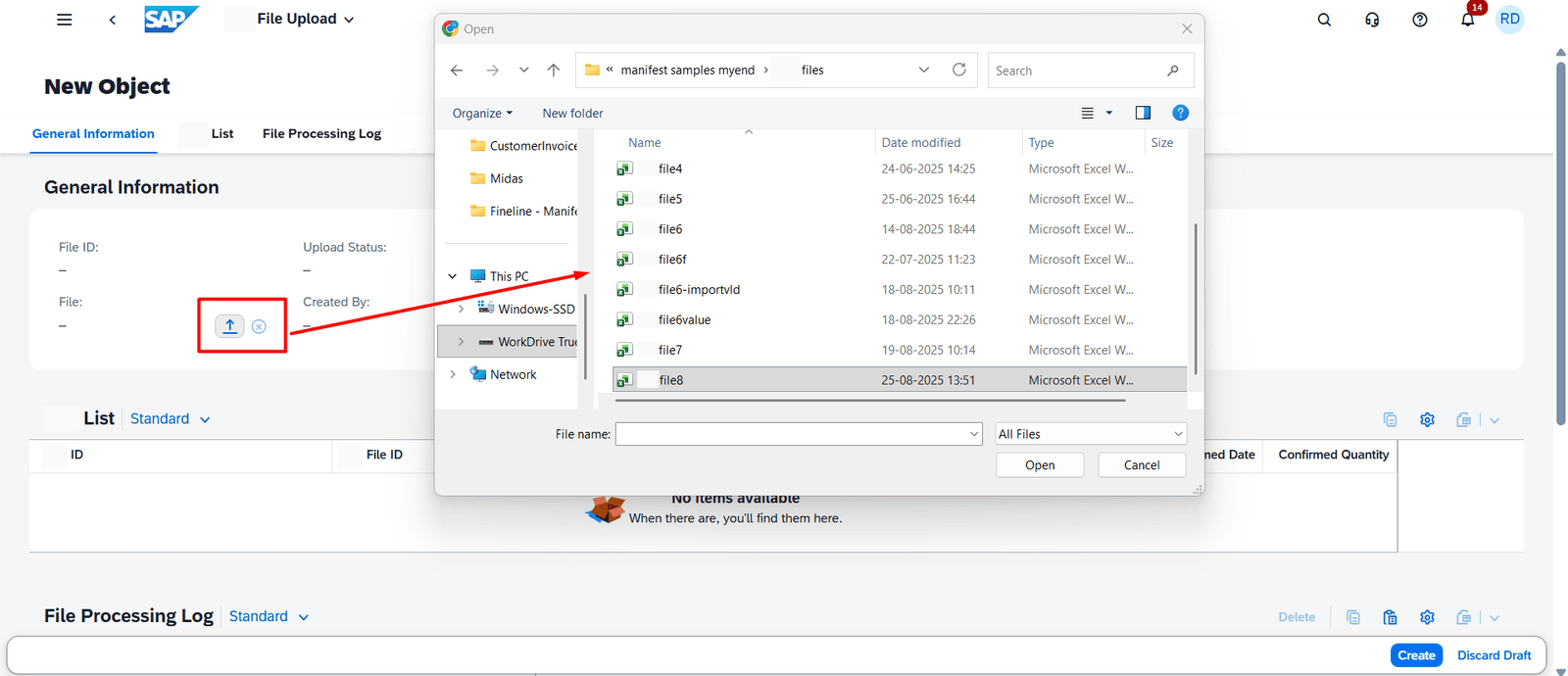
Upload Excel file to Supplier Confirmation
Upon upload, the system assigns the file a status of “Ready for Import,” indicating that the file has been successfully received and is ready for processing.
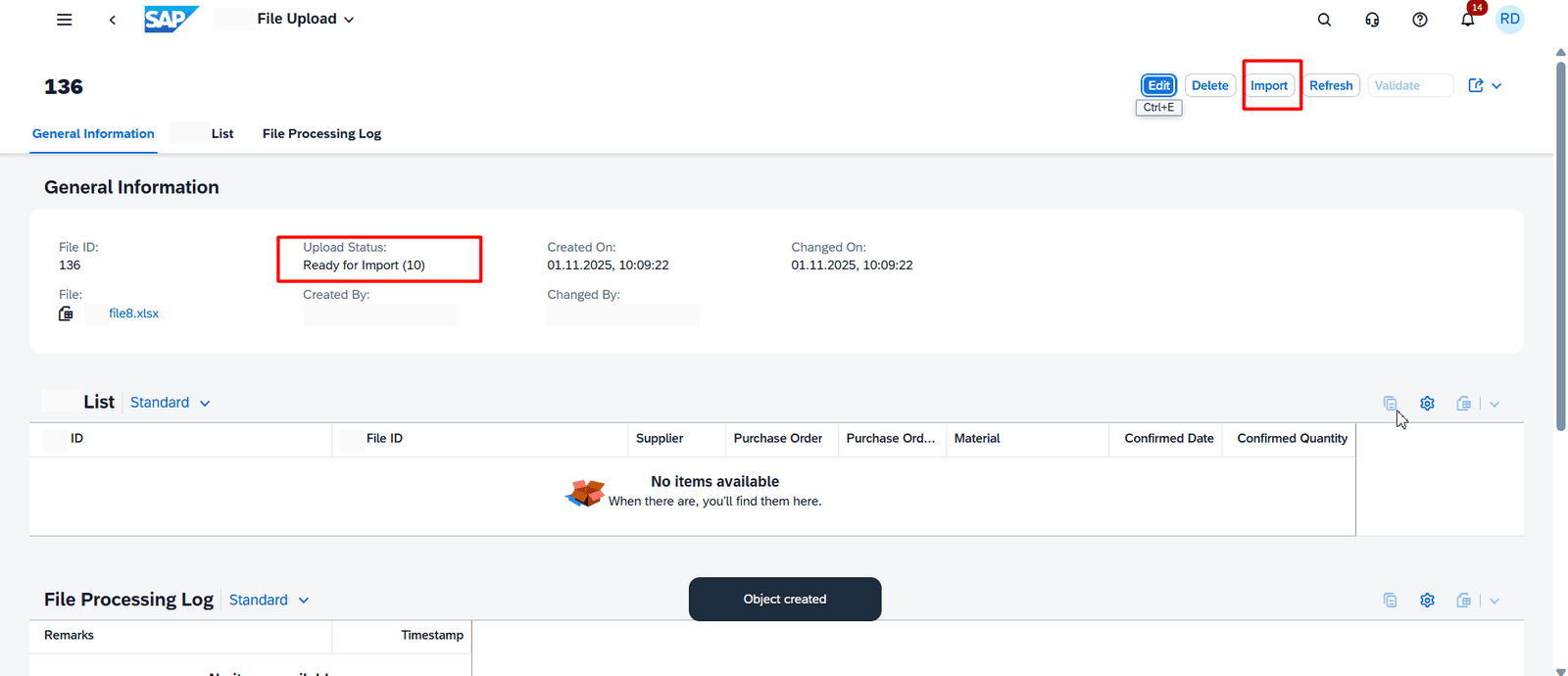
Supplier Confirmation after File upload
- When the user triggers the Import action, an application job runs in the background. The job reads all rows from the uploaded Excel file, validates the data, and creates individual supplier confirmation line entries in the custom table Manage Supplier Confirmation.
After all records are successfully imported, the file status changes to “Imported.”
The uploaded data is then displayed in the Supplier Confirmation List, an item table that lists all imported lines for tracking and review.
File processing logic
From the Supplier Confirmation List, users can navigate directly to the corresponding supplier Supplier Confirmation lines in the Manage Supplier Confirmation app, allowing a smooth transition from file upload to confirmation review and processing.
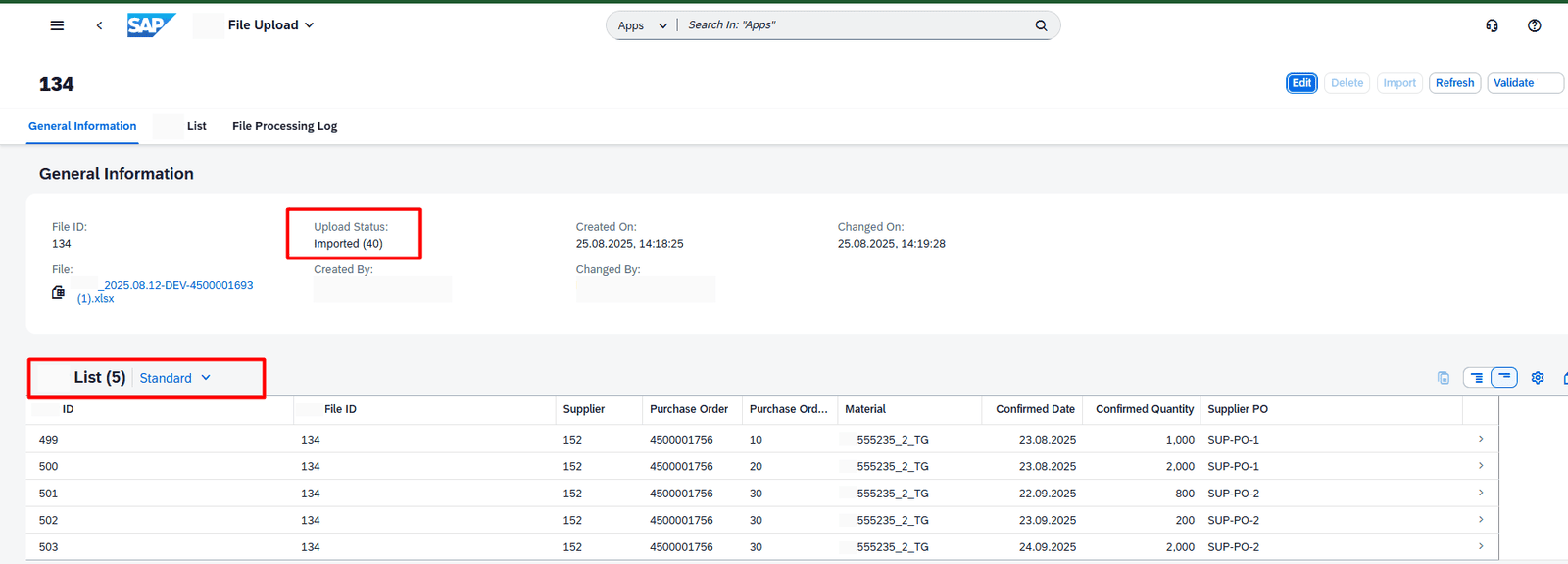
Supplier Confirmation entries after File import
Create Supplier Confirmation logic
Validate Supplier Confirmation Action
The Validate Supplier Confirmation action ensures the accuracy and consistency of imported Supplier Confirmation lines before they are processed for supplier confirmation creation. This step performs several checks to maintain data integrity between the Supplier Confirmation file and purchase order data in the system.
Key Validation Logic
The system validates that the Unit of Measure (UoM) in each Supplier Confirmation line matches the corresponding UoM in the purchase order line.
It also checks for deviations in the following fields:
- Confirmed Quantity – when the Supplier Confirmation confirmed quantity differs from the purchase order open quantity
- Confirmed Date – when the Supplier Confirmation confirmed date differs from the purchase order requested delivery date
Deviation Handling
If any mismatches are detected, the system records Deviation Details to highlight differences between supplier-provided data and the existing purchase order information.
For lines where the data matches previous uploads, the system reuses the existing processing status. This helps maintain continuity and avoids redundant validations.
If the system finds existing Supplier Confirmation lines with the same key fields (such as purchase order number, item, and supplier) but a different confirmed date, it carries forward the previous processing status logic to maintain version consistency.
File Processing Log
If a Supplier Confirmation line fails validation or cannot be updated, its status is automatically set to “Import Failed.”
For each failed record, the system generates an error log entry with detailed diagnostic information, helping users identify and correct issues quickly.
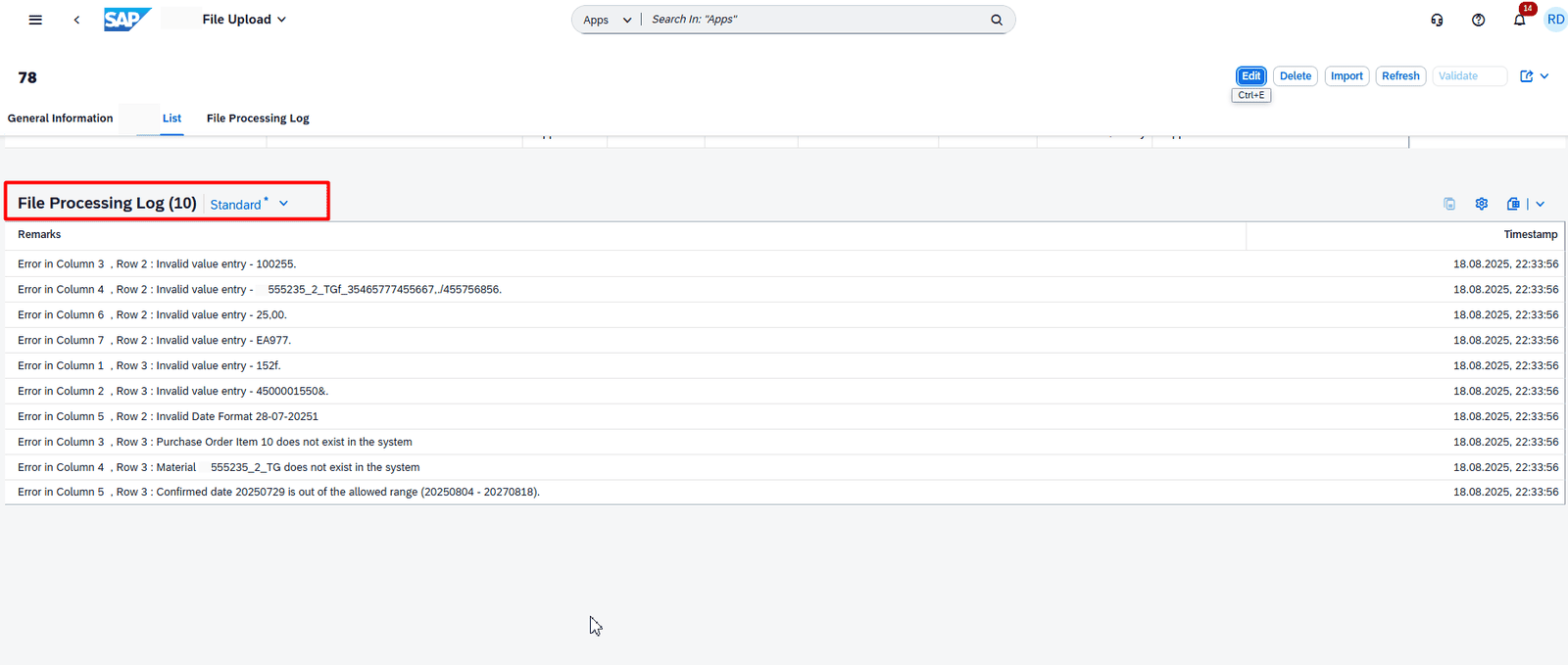
Supplier Confirmation entries after File import
Manage Supplier Supplier Confirmation – Confirm Action
Step 1: Review and Approve
Users first review the relevant Supplier Confirmation lines and select the records that need to be processed.
The selected records are then marked with the status “Approved.”
Only Supplier Confirmation records with the Approved status are eligible for confirmation processing.
Step 2: Execute Confirm Action
Once the approved lines are selected, the user triggers the Confirm action.
The system then:
- Retrieves all Supplier Confirmation lines with the status Approved
- Reads the corresponding supplier confirmation data using:
- Purchase Order number
- Purchase Order item
Step 3: Update or Create Supplier Confirmation
The system checks whether a supplier confirmation already exists for the corresponding purchase order item.
- If a confirmation exists, the system updates the confirmation date and quantity.
- If no confirmation exists, the system creates a new supplier confirmation line and links it to the purchase order item.
After successful processing, the system records the following details for traceability:
- Supplier Confirmation Number
- Purchase Order Item
- Confirmation Line Number
A response log is also generated for each processed Supplier Confirmation line.
Supplier confirmation creation logic
Error Handling
If a Supplier Confirmation line fails during processing, the system updates the line status accordingly and records a detailed response log for that record.
This allows users to review the error, correct the issue, and reprocess the affected line.
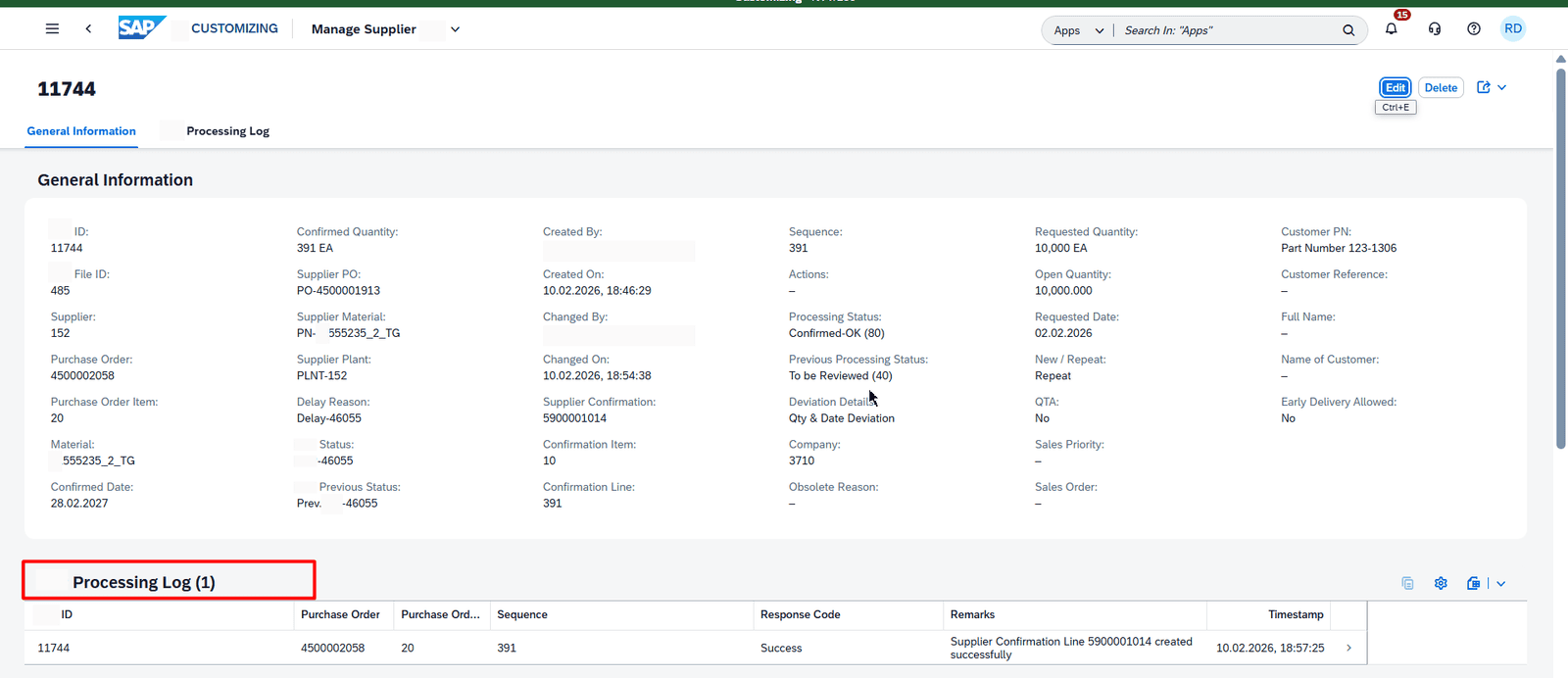
Supplier Confirmation– Response Log
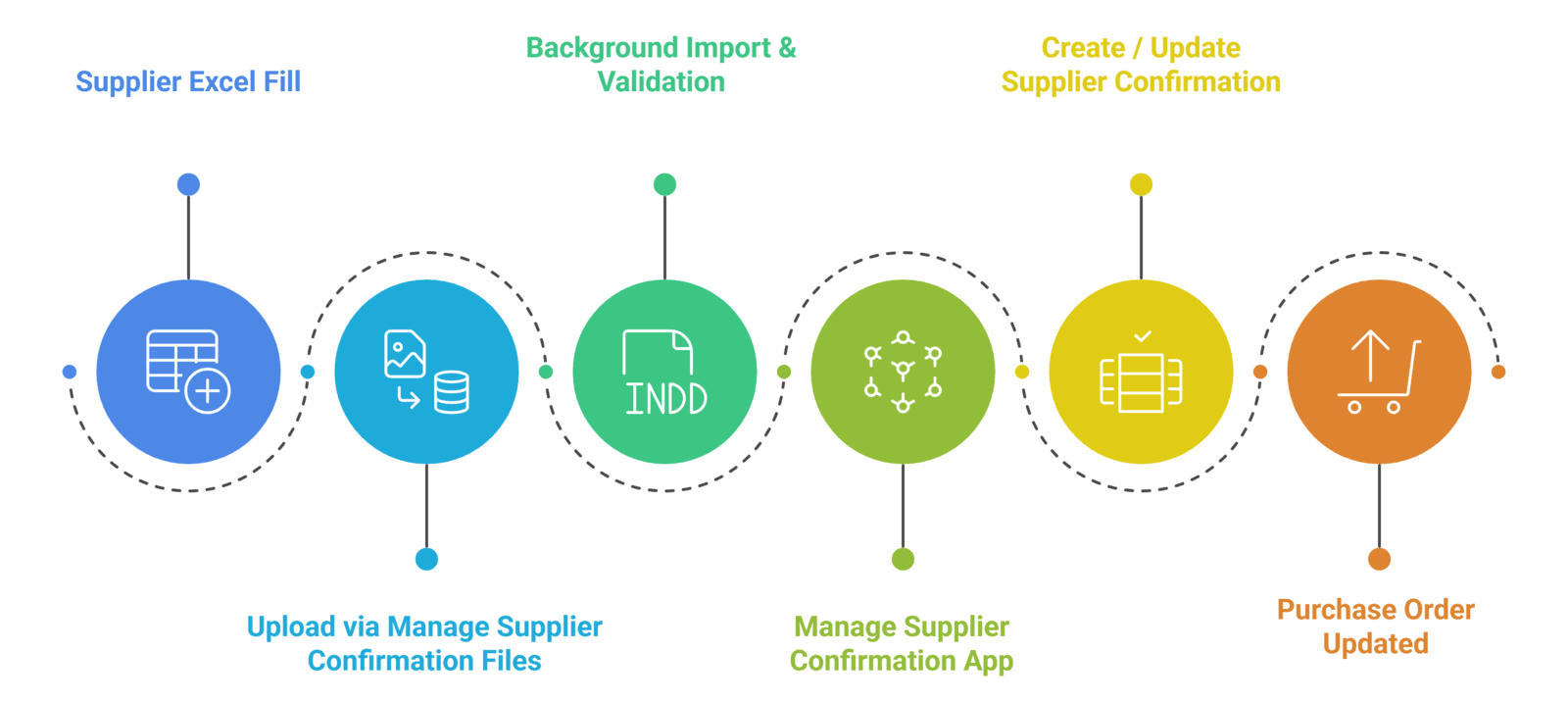
Flow Diagram
Benefits
- Reduced manual effort through bulk upload of supplier confirmation data using Excel.
- Improved accuracy through validation against purchase order data.
- Faster processing of supplier confirmations.
- Better visibility into open purchase orders through the Supplier Confirmation status file.
Conclusion
Managing supplier confirmations manually can become time-consuming when dealing with multiple suppliers and large numbers of purchase order lines. By enabling Excel-based uploads within SAP S/4HANA Public Cloud, supplier confirmation updates can be handled more efficiently.
The solution allows users to upload supplier data in bulk, validate it against existing purchase orders, and create confirmations with minimal manual effort while maintaining clear visibility into open purchase orders.
